
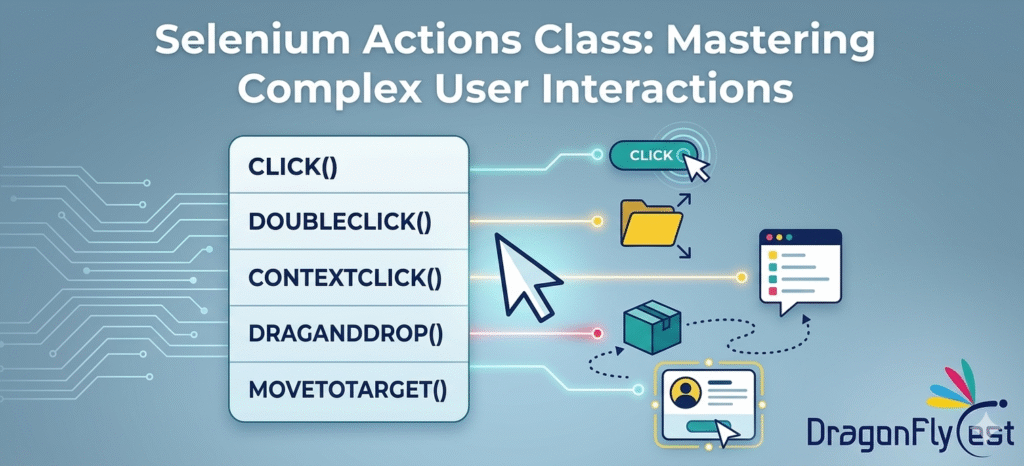
INTRODUCTION – What is Actions Class in Selenium?
The Actions class is a pre-defined class in Selenium that is used to perform advanced keyboard and mouse interactions by simulating real user behavior.
The Actions class comes from the package: org.openqa.selenium.interactions.Actions
Why Do We Need to Create an Object for Actions?
To use, interaction methods we need to create object: Actions a=new Actions(driver);
The methods inside the Actions class are non-static methods, which means they cannot be accessed directly using the class name. Therefore, an object must be created to call these methods. We cannot use Actions Methods without creating object.
Methods In Actions Class
build() : is a method which creates an action. It creates an action in sequence and combines them and returns object type of Action. An Action will not be performed using build() ,it just creates an action.
perform() : is a method which completes action. It creates actions in sequence and performs an action. perform() internally calls build();
| Actions | Methods |
| MouseHover | moveToElement() |
| Click & Hold | clickAndHold() |
| Right Click | contextClick() |
| Double Click | doubleClick() |
| Drag and Drop | dragAndDrop() |
| Key Press | keyDown() |
| Key Release | keyUp() |
How To Perform Mouse Actions in Selenium?
moveToElement() : This method is used to move the mouse cursor to a specific element.
MoveToElement() is used to hover over dropdowns,images,links.
Syntax: a.moveToElement(element).perform();
Ex: WebElement x= driver.findElementBy.Xpath(“//section[@data-id=’6d135f4f’]”);
object.moveToElement(x).perform();
clickAndHold() : This method is used to hold the mouse button on a web element without releasing it.
Syntax : objectname.clickAndHold(element).perform();
Ex: WebElement x= driver.findElement(By.Xpath(“//section[@data-id=’6d135f4f’]”));
a.clickAndHold(x).perform();
clickAndHold()is used when drag and drop operations,holding buttons actions,selecting text by dragging.
contextClick() : used to perform right click operation
Syntax : objectname.contextClick(element).perform();
Ex: WebElement x= driver.findElement(By.Xpath(“//section[@data-id=’6d135f4f’]”));
a.contextClick(x).perform();
doubleClick() : used to perform double click operations.
Syntax : objectname.doubleClick(element).perform();
Ex: WebElement x= driver.findElement(By.Xpath(“//section[@data-id=’6d135f4f’]”));
a.doubleClick(x).perform();
dragAndDrop() : used to perform drag and drop operations
Syntax : objectname.dragAndDrop(source element,target element).perform();
Ex: WebElement x= driver.findElement(By.Xpath(“//section[@data-id=’6d135f4f’]”));
WebElement y= driver.findElement(By.Xpath(“//section[@data-id=’6d135f48′]”));
a.dragAndDrop(x,y).perform();
How To Perform Keyboard Actions in Selenium
Keyboard Methods in Actions Class
keyDown() : used to hold the key
keyUp() : used to release the key
Types of Keyboard Keys in Selenium
Selenium provides keyboard interaction support through the Keys class, which allows automation scripts to simulate real keyboard actions such as pressing Enter, using shortcut keys, or navigating between fields.
The Keys class is available in the following package : import org.openqa.selenium.Keys;
1. Modifier Keys
Keys.Control : used for ctrl key
Keys.Shift : used for SHIFT key
Keys.ALT : used for Alt key
Keys.COMMAND : It is MAC command key
Syntax : objectname.keyDown/keyUp(Keys.key).perform();
Ex : a.keyDown(Keys.CONTROL).sendKeys(“a”).keyUp(Keys.CONTROL).perform();
2.Navigation Keys
| Key | Purpose |
| Keys.ARROW_UP | Moveup |
| Keys.ARROW_DOWN | Move down |
| Keys.ARROW_LEFT | Move left |
| Keys.ARROW_RIGHT | Move Right |
| Keys.TAB | Next line |
| Keys.Home | Moves to top |
| Keys.END | Moves to BOTTOM |
| Keys.PAGE_UP | Scroll up |
| Keys.PAGE_DOWN | Scroll Down |
Ex : a.sendKeys(“hyd”,Keys.Home).perform();
3. Action Keys
Keys.ENTER : Used for Enter key
Keys.SPACE : Used for space key
Keys.BACK_SPACE : delete left character
Keys.DELETE : delete right character
Keys.INSERT : Insert mode
Ex : action.keyDown(Keys.SHIFT).sendKeys(“Laptop”).sendKeys(Keys.ENTER).perform();
Conclusion
The Selenium Actions class enables mouse and keyboard actions that simulate real-time user behaviour in automation.It improves test efficiency by handling complex scenarios that WebDriver alone cannot perform easily.

 USA
USA