
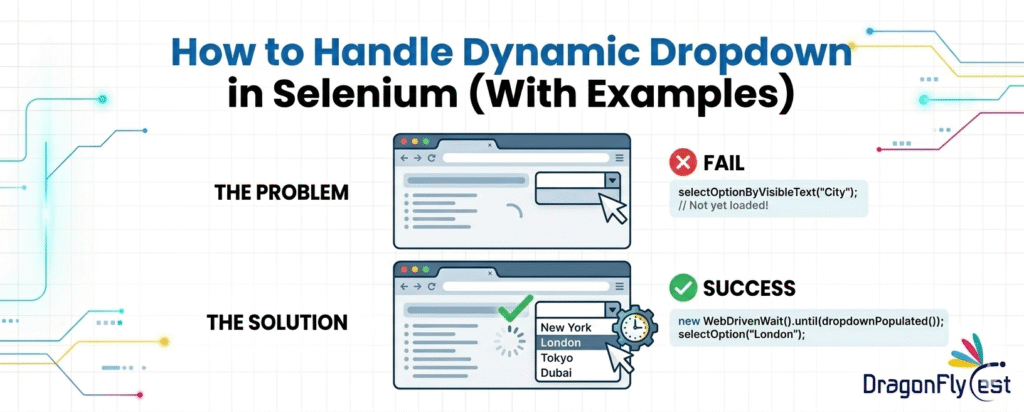
What is a Dynamic Dropdown in Selenium?
Drop downs in a website could be created in several different ways. Some dropdowns are created using <select> HTML tag and some others are created using <ul> ,<li>, <button> and <div> tags.
Some dropdowns are dynamic in nature which means after clicking or selecting any option, the drop downs values would populate accordingly. And in some cases, you need to mouse hover on an element in selenium to see the drop-down options.
Why Select Class Doesn’t Work in Selenium?
The Select class in Selenium is specifically designed to work with HTML <select> dropdown elements. However, many modern web applications use custom-built dropdowns instead of the traditional <select> tag.
Selenium webdriver provides Select class which can be used only for drop down created using <select> HTML tag. Select class has methods such as selectByVisibleText(), selectByIndex() and selectByValue() to select the desired option from dropdown.
However, for NonSelect dropdowns, Select class cannot be used. There should be a common way to handle different types of dropdown through selenium automation .
How to Select DynamicDropdown in Selenium?
We can handle dropdowns in Selenium using Select Class and without using Select Class. The example below is one of the ways to handle dynamic dropdowns.
- By storing all the options in List and iterating through it
Method 1: By storing all the options in List and iterating through it
We can handle Dropdown in Selenium by storing all the options in f a List and then iterate through the List
Example:
Here We are taking Rahulshetty DropdownsPractise website as an example of dynamic dropdowns, this is Dynamic single select dropdown
Dynamic “From–To” Dropdown in Flight Booking UI
The “From” and “To” dropdowns on this flight booking page are a classic example of a dynamic dependent dropdown. When a user selects a departure city in the “From” field, the application dynamically updates the list of available destinations in the “To” field.
Unlike static dropdowns, these options are:
- Loaded dynamically based on user interaction
- Filtered in real-time to avoid invalid selections
- Often rendered using JavaScript/AJAX, not preloaded in the DOM
This makes automation slightly challenging, as testers must:
- Wait for the dropdown options to become visible
- Handle dynamically generated elements
- Ensure the correct pairing of source and destination cities
Step1 Launch Rahulshetty DropdownsPractise website and click “From” dropdown
Code:
driver.get(“https://rahulshettyacademy.com/dropdownsPractise/”); driver.findElement(By.id(“ctl00_mainContent_ddl_originStation1_CTXT”)).click();
Step 2: Store all “From” options in a List as Webelements
Code:
List<WebElement> options = driver.findElements(By.xpath(“//div[@role=’option’ and contains(@class,’mbsc-wheel-item-multi’) and not(@aria-hidden=’true’)]”));
Step 3: Iterate and select desired “From” city
// Print total number of options
System.out.println(“Number of options are: ” + optns.size());
// Select “From” and “To” cities using iteration
String fromCity = “Goa (GOI)”;
String toCity = “Bengaluru (BLR)”;
for (WebElement opt : optns) {
String text = opt.getText();
System.out.println(text);
// Select FROM city
if (text.equals(fromCity)) {
opt.click();
}
// Select TO city
else if (text.equals(toCity)) {
opt.click();
break; // stop once both selections are done
}
}
Handling Dynamic Multi-Select Dropdown in Selenium
On pages like TutorialsPoint Selenium Practice Select Menu dropdowns are not traditional <select> elements. Instead, they are custom-built dynamic components rendered using JavaScript.
Steps to Handle Dynamic Multi-Select Dropdown
Step 1: Launch the application and maximize window
driver.get(“https://www.tutorialspoint.com/selenium/practice/selectmenu.php”);
driver.manage().window().maximize();
Step 2: Click on dropdown to display options
driver.findElement(By.xpath(“//span[contains(@class,’mbsc-textfield-inner’)]”)).click();
Step 3: Capture all visible options into a List
List<WebElement> options = driver.findElements(By.xpath(“//div[@role=’option’ and contains(@class,’mbsc-wheel-item-multi’) and not(@aria-hidden=’true’)]”));
Step 4: Print all available options
System.out.println(“Total options: ” + options.size());
for (WebElement op : options) {
System.out.println(op.getText());
}
Step 5: Iterate and select desired option
for (WebElement ele : options) {
if (ele.getText().equalsIgnoreCase(“Clothing & Jewelry”)) {
ele.click();
break;
}
}
for (int i = 0; i < options.size(); i++) {
options.get(i).click(); // select all elements in dropdown
if (i == 4) {
options.get(i).click();
Complete Code
driver.get(“https://www.tutorialspoint.com/selenium/practice/select-menu.php”);
driver.manage().window().maximize();
Thread.sleep(3000);
// Open dropdown
driver.findElement(By.xpath(“//span[contains(@class,’mbsc-textfield-inner’)]”)).click();
// Capture options
List<WebElement> options = driver.findElements( By.xpath(“//div[@role=’option’ and contains(@class,’mbsc-wheel-item-multi’) and not(@aria-hidden=’true’)]”)
);
// Print options
System.out.println(“Total options: ” + options.size());
for (WebElement op : options) {
System.out.println(op.getText());
}
// Select required option
for (WebElement ele : options) {
if (ele.getText().equalsIgnoreCase(“Clothing & Jewelry”)) {
ele.click();
break;
}
}
Conclusion:
Dynamic dropdowns are widely used in modern web applications to provide a more interactive and user-friendly experience. Unlike traditional <select> elements, these dropdowns are built using custom HTML and JavaScript, which makes them slightly more complex to handle in Selenium.
To effectively work with dynamic dropdowns, testers need to:
- Identify the correct locators for dynamically generated elements
- Trigger the dropdown to load options before interacting
- Use List<WebElement> and iteration to select values
- Handle synchronization using waits instead of static delays
By applying these techniques, automation scripts become more reliable and adaptable to UI changes. Mastering dynamic dropdown handling is an essential skill for building robust Selenium frameworks and handling real-world testing scenarios efficiently.

 USA
USA